Member Guide
// MEMBER GUIDE
Getting set up with TickEdge
Everything here walks through the same steps our own team follows when we set up a new machine. If you'd rather just watch the numbers download and install, start with Install TickEdge and come back for the rest as you need it.
What's included
Your membership unlocks, under one license key:
- Six strategies: Trend Strategy, Trend Strategy Ultra, Trend Shift Bot, Candle Flip, Cloud Bounce and Range Breakout.
- Two indicators: Trend and Trend Ultra.
- The TickEdge Copier, for running the same trades across several accounts.
- Our templates — the exact settings we trade with — for everything above.
New products may be offered later as separate packages. This page covers how to get all of it running; the settings for any one strategy or indicator are documented inside NinjaTrader itself, next to each input.
Install TickEdge
One installer puts the strategies, indicators, the Copier and our templates into NinjaTrader 8. If you already have TickEdge, the same installer updates it and leaves your license and your own templates alone.
- 1Close NinjaTrader if it's open.
- 2Go to tickedge.live/download, enter the license key from your welcome email, and click Full install.
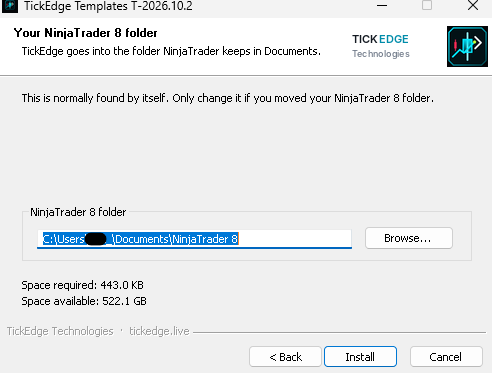
- 3Double-click the TickEdge Setup file once it downloads. It finds your NinjaTrader 8 folder on its own — you'll only need to point it there yourself if you've moved that folder.
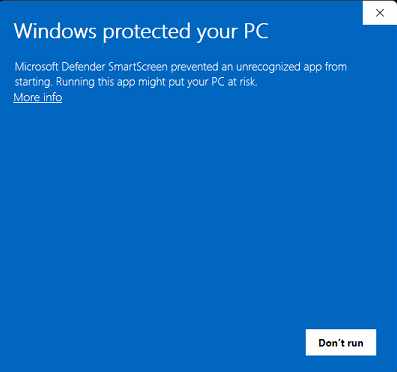
- 4Windows may show a blue Windows protected your PC screen. That's normal for a new, small-business installer — click More info, then Run anyway.
- 5Follow the wizard through to the end, then open NinjaTrader.
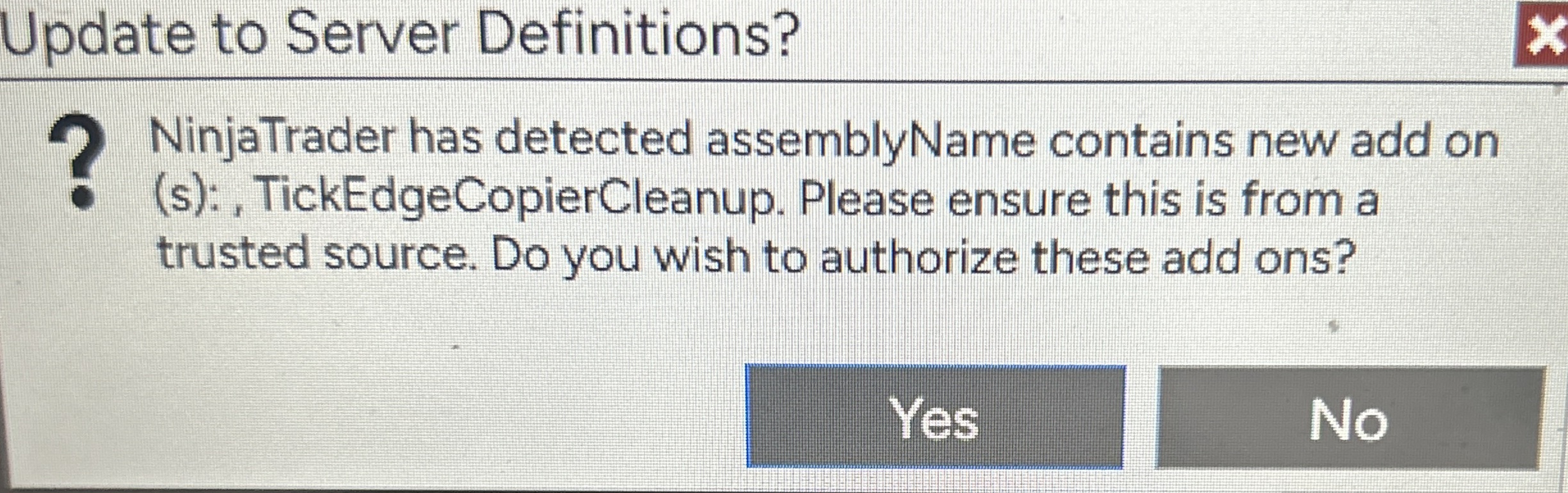
- 6NinjaTrader asks Update to Server Definitions? and names the new add-on (for example TickEdgeCopierCleanup). That's TickEdge's own add-on — click Yes. If you click No, TickEdge won't load.
Activate your license
One key activates every TickEdge product in your plan, on one computer at a time.
- 1In the NinjaTrader Control Center, click New → TickEdge License.
- 2Paste the license key from your purchase email.
- 3Click Activate.
- 4Press F5 on every open chart so the strategies and indicators pick up the activated license.
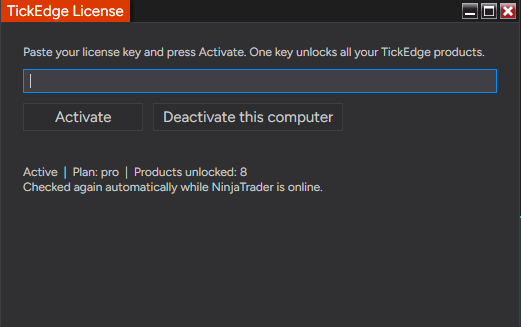
Changing PC or reinstalling Windows? Open the same window on the old machine first and click Deactivate this computer, then activate the key on the new one. A license can be moved up to 3 times, for special occasions like these; moving is not for sharing a key or switching it between computers. Running TickEdge on two computers at the same time — for example to copy trades between them — needs its own membership (its own key) for each computer.
Put a strategy or indicator on a chart
Strategies and indicators are added the same way as anything else in NinjaTrader 8.
Indicators (Trend, Trend Ultra)
- 1Open a chart.
- 2Right-click it → Indicators…
- 3Open the TickEdge folder, pick Trend or Trend Ultra, and move it to the right-hand side.
- 4Click OK.
Strategies (Trend, Trend Ultra, Trend Shift Bot, Candle Flip, Cloud Bounce, Range Breakout)
- 1Open the chart you want it to trade from.
- 2Right-click it → Strategies…
- 3Pick the TickEdge strategy from the list, set your account and quantity, and tick Enabled.
- 4Click OK.
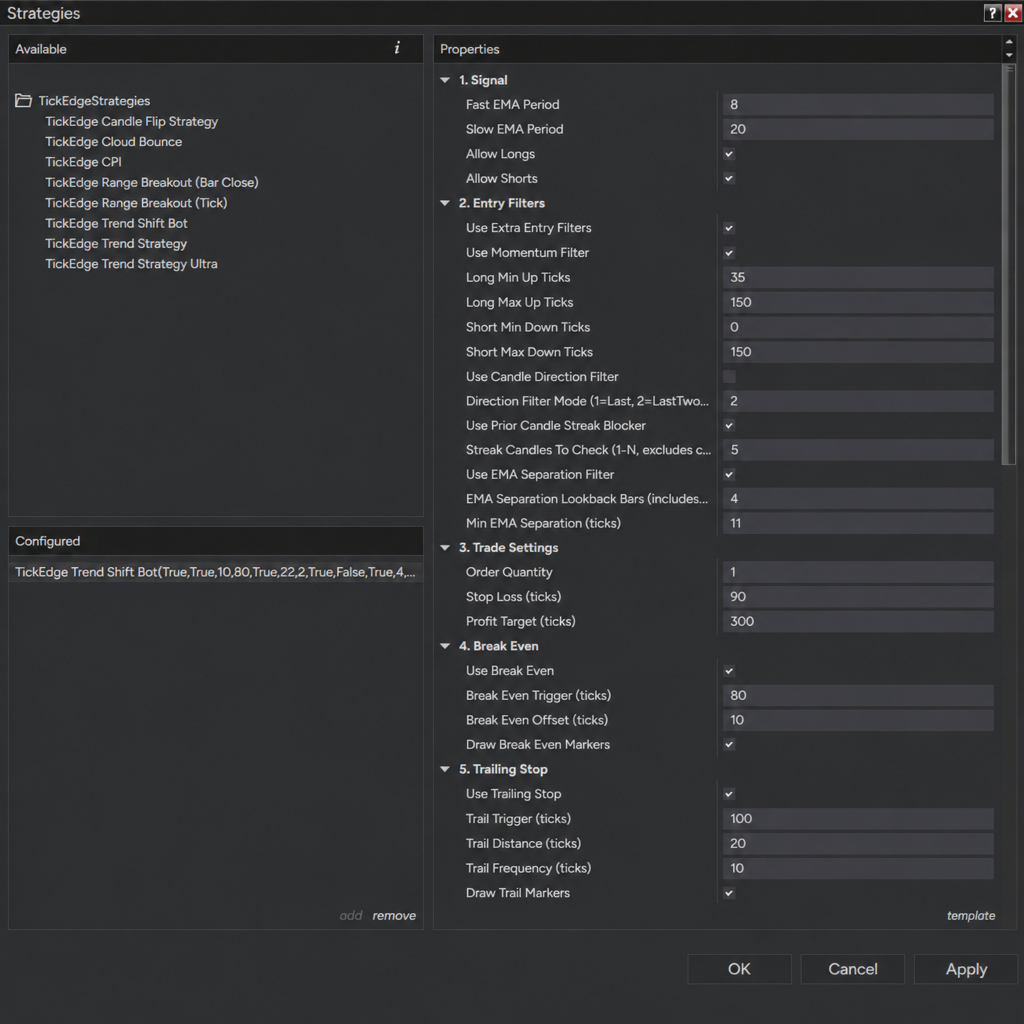
Load a template
Templates are where the actual settings live — stop size, targets, filters, all of it. Installing TickEdge puts our templates in NinjaTrader; loading one is a separate, quick step on each strategy or indicator.
- 1Open the strategy's or indicator's settings window (same place you just added it from).
- 2At the bottom right, click template → load
- 3Choose the template named for that strategy or indicator and click OK.
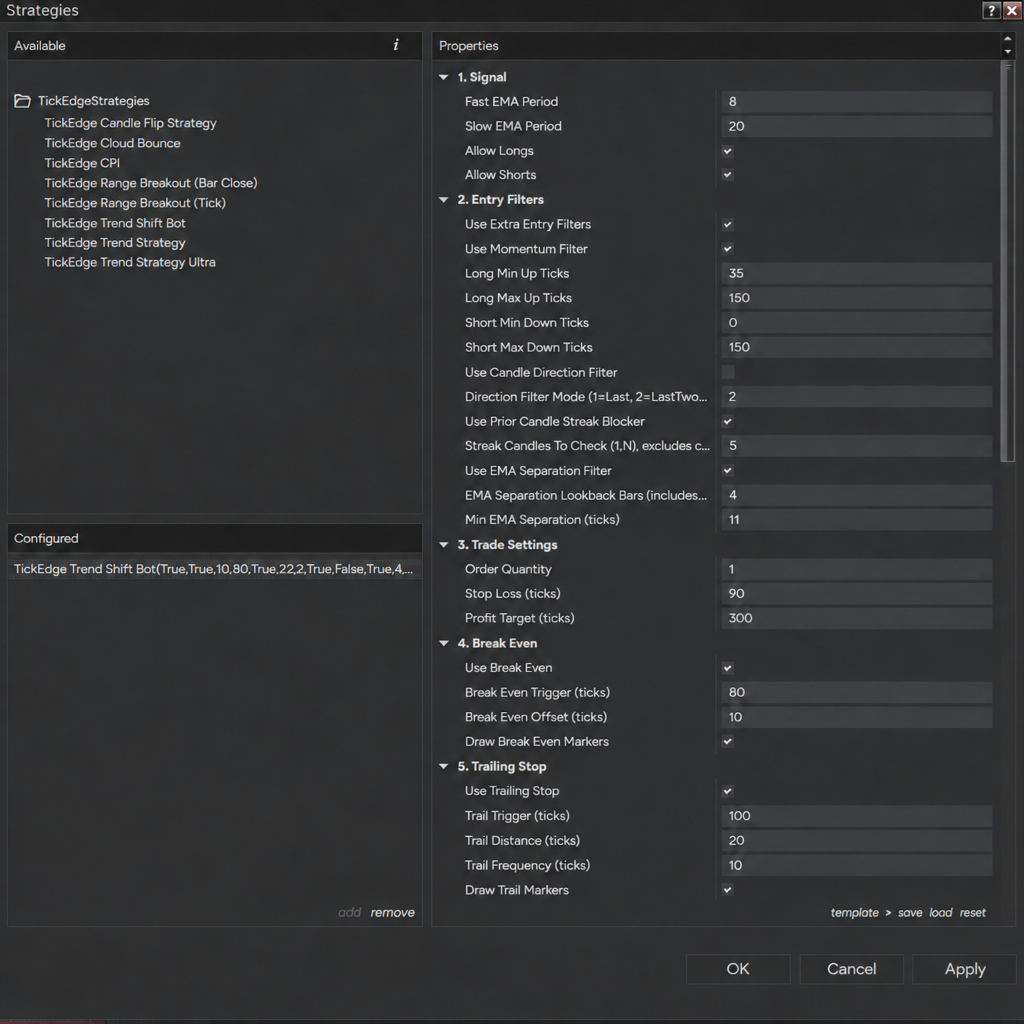
When we update a template, you'll get an email with a link and the short installer that updates templates only. It replaces anything named TickEdge - … and leaves everything else in your Templates folder untouched. A strategy that's already running keeps its current settings until you load the new template onto it yourself.
Running the templates installer
- 1Double-click the downloaded TickEdge Templates....exe
- 2Windows SmartScreen may show the same blue warning as the full installer — click More info, then Run anyway.
- 3Click Next on the welcome screen.
- 4Leave the NinjaTrader 8 folder as it finds it (it's found automatically almost every time) and click Install.
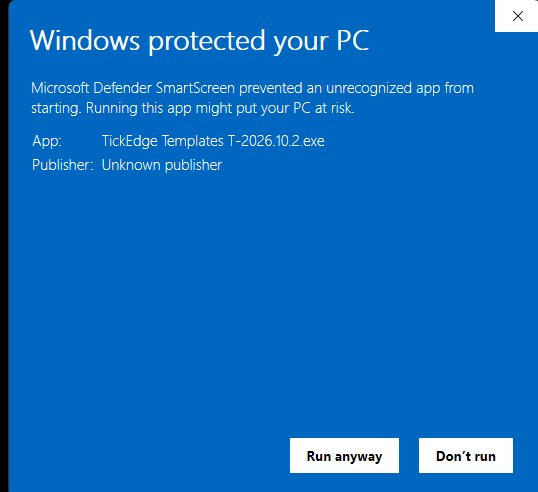
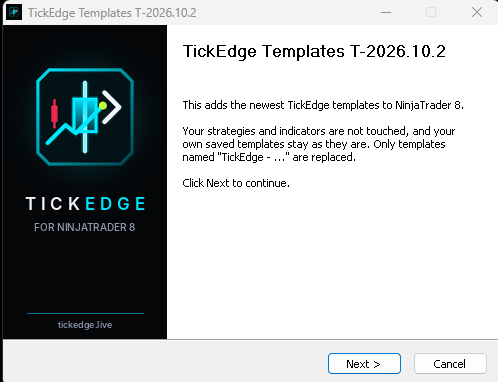
Set up the Copier
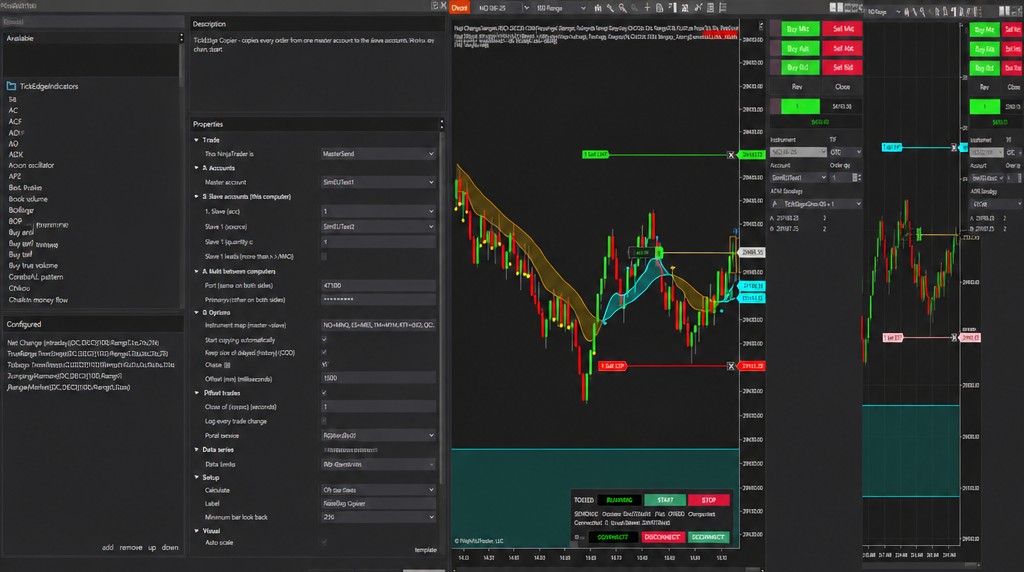
The Copier mirrors trades from one account onto others — other accounts in the same NinjaTrader, or another computer entirely.
- 1Open any chart. The instrument and bar type don't matter.
- 2Right-click it → Indicators… → open the TickEdge folder → add TickEdge Copier.
- 3Set it up under 1. Role, 2. Accounts, 3. Slave accounts and 4. Link between computers (see below), then click OK.
Roles
- Local — the master account and the accounts copying it are all in this one NinjaTrader.
- MasterSend — this NinjaTrader trades, and sends those trades out to another NinjaTrader (a second PC, or a second NinjaTrader on the same PC).
- SlaveReceive — this NinjaTrader receives the trades from a master and places them on its own accounts.
MasterSend and SlaveReceive share the same port and password. Leave the master address empty on the slave side and it will find the master by itself on the same computer or network.
Accounts
Pick your master account — the one you actually trade — then add each account that should copy it, with a quantity multiplier (slave quantity = master quantity × that number). A slave account can also be set to trade the micro version of the master's instrument (1 NQ = 10 MNQ), which is useful for a smaller account copying a bigger one.
Good to know
- You can run several copiers at once, one per chart (for example one for ES and one for NQ), each with its own master and receiving accounts.
- Reloading the chart or changing the bar type does not stop the copier. Removing the indicator or closing the chart does, after a few seconds.
- Don't press F5 while you're in a trade — the copier restarts and stops managing the orders already working.
- Don't run it alongside another copier on the same accounts, or every trade gets copied twice.
Set up the Evaluation Guard
Set a profit target for your evaluation account. When it is reached, the TickEdge Evaluation Guard closes your open positions and stops your TickEdge strategies from opening new trades on that account, so you don't give the profit back.
- 1In the NinjaTrader Control Center, click New → TickEdge Evaluation Guard.
- 2Pick the account.
- 3Enter Start: the balance at the start of the evaluation.
- 4Enter Profit: how much you need to make.
- 5Enter Buffer: a small margin for commissions and slippage. It can be 0.
- 6Add the account, and turn monitoring on.
Good to know
- Once it triggers, the account stays blocked.
- It stops TickEdge strategies only, not manual orders, other companies’ strategies or the Copier.
- It closes with a market order, so the price is not guaranteed.
Drawdown and optimizing
Every strategy here is rules-based, not predictive — it trades the same setup every time, and markets don't stay the same forever. When a strategy sits in a deeper or longer drawdown than you're used to seeing from it, that's the signal to re-optimize its parameters against recent data rather than to keep running it unchanged or shutting it off outright.
Run it through the Strategy Analyzer with a recent date range and let it search around the strategy's own settings. You're not looking for a different strategy — just for the version of it that fits how the market has been trading lately. We also optimize our own templates this way, and send out an update whenever we land on something worth passing along.
Updates
We send two kinds of update emails, and either one can be installed over what you already have:
- A full update — new or changed strategies, indicators or the Copier. Run the full installer again.
- A templates update — new settings only. Run the small templates installer, then load the new template onto each strategy or indicator per the section above.
Both are on the download page at any time, with your license key.
If something looks wrong
- A strategy stopped and shows an error: NinjaTrader disables a strategy automatically if an order gets rejected — it's a safety behavior, not a crash. Reload the template and restart it; if it keeps happening, send us a screenshot.
- Charts feel slow after installing: this is almost always too many strategies or indicators recalculating on the same chart at once, not TickEdge itself. Keep heavy strategies on their own chart where you can.
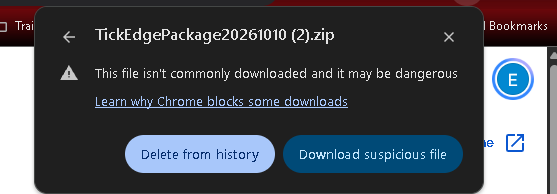
- Browser or Windows warns about the download: normal for a small, newer publisher — see the note on the download page for exactly what to click.
Anything else, write to support@tickedge.live with a screenshot. It's the fastest way for us to see exactly what you're seeing.